Microsoft Graph API 存取 Excel
目標
透過 API 存取讀寫 SharePoint 裡頭的 Excel 文件。
流程
- 註冊企業應用程式 (Enterprise applications)
- 授權企業應用程式存取特定檔案
- API 呼叫操作
註冊企業應用程式
https://portal.azure.com/#view/Microsoft_AAD_RegisteredApps/CreateApplicationBlade/isMSAApp/
注意 註冊 跟 新增 不同,這邊需要的是 註冊。 新增比較類似把別人做好的應用程式,加到自己的企業當中。
取得 Application (client) ID 以及 Directory (tenant) ID
註冊完成之後,Overview 可以看到各種必要資訊。
最重要的是取得 Application (client) ID 以及 Directory (tenant) ID,是一串 UUID
xxxxxxx-36d7-xxxxx-9001-1eb3513b5c9c
申請憑證金鑰
透過 Certificates & secrets 申請憑證金鑰,注意金鑰有效期限最長就 24 個月。然後金鑰當下要記下來,無法回頭重新查看。
要求權限
在 API permissions 添加需要的權限,目前只需要針對特定檔案做存取。所以我們只需要 Files.SelectedOperations.Selected 權限就足夠了。
設定需要的權限之後,接著要請 M365 管理員協助授權權限(Grant admin consent)
目前為止
完成到這個階段,我們應該持有三個必要的變數
- Directory ID(Tenant ID)
- Application ID(Client ID)
- Credential (Client Secret)
授權企業應用程式存取特定檔案
我們的 Excel 放在 SharePoint 底下的文件裡頭,為了從 SitePoint 取得這些檔案。首先我們需要知道該 SharePoint 站點的 site id,然後查找裡頭的檔案,並透過 API 設定授權給剛剛申請的企業應用程式。
Graph Explorer
由於上述這些都需要透過 API 操作取得,我們可以利用 Graph Explorer 方便的調用需要的 API。並且用自己的身份帳號登入,他會自動用帳號生成權杖,進行 API 存取。 https://developer.microsoft.com/en-us/graph/graph-explorer
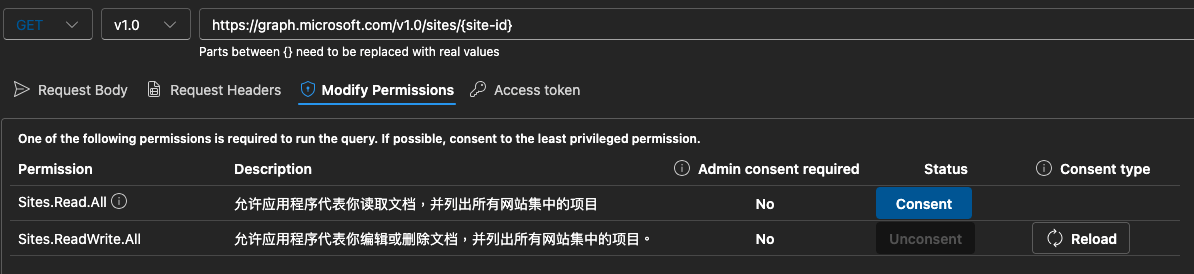
Modify Permissions 頁籤的功能,是方便授權特定的 API,例如我在網址列輸入 https://graph.microsoft.com/v1.0/sites/{site-id} ,切換到該頁籤,它就會提示可能需要用到的權限。
取得 Site ID
GET https://graph.microsoft.com/v1.0/sites/ yourcompany.sharepoint.com/sites/your_site
{
    "@odata.context": "https://graph.microsoft.com/v1.0/$metadata#sites/$entity",
    "createdDateTime": "2026-01-05T05:54:13.853Z",
    "description": "",
    "id": "yourcompany.sharepoint.com,b623461c-40cd-893f-a6d5-12341ed52f95,14abcdeeba-f89c-4fc9-a1bd-45678e342106",
    "lastModifiedDateTime": "2026-01-08T07:41:12Z",
    "name": "your_site",
    "webUrl": "https://yourcompany.sharepoint.com/sites/your_site",
    "displayName": "YOUR SITE",
    "root": {},
    "siteCollection": {
        "hostname": "yourcompany.sharepoint.com"
    }
}
完整的 ID 是 yourcompany.sharepoint.com,b623461c-40cd-893f-a6d5-12341ed52f95,14abcdeeba-f89c-4fc9-a1bd-45678e342106 ,但實際測試你可以僅僅帶上 b623461c-40cd-893f-a6d5-12341ed52f95
查看文件權限以及分享情況
查找文件有兩種方式,一種是帶上文件的 ID 以及所在文件的 Drive ID,組合成類似底下路徑 (前提是需要知道 文件 ID 以及 Drive ID)
https://graph.microsoft.com/v1.0/sites/b623461c-40cd-893f-a6d5-12341ed52f95/drives/b!HEYStj-JzUCm1RAPHtUvlbru_xSc-MlPob0eCE40IQY02rH_QhtLTJYag5do3haV/items/01HVQC2HQI6AUMUON77REY3QTDQEJICMM4/
又或者用 PATH 的方式尋找
https://graph.microsoft.com/v1.0/sites/b623461c-40cd-893f-a6d5-12341ed52f95/drive/root:/我的檔案.xlsx
這邊我們用 PATH 方式查找,可以得到如下結果
GET https://graph.microsoft.com/v1.0/sites/`b623461c-40cd-893f-a6d5-12341ed52f95/drive/root:/我的檔案.xlsx:/permissions`
{
    "@odata.context": "https://graph.microsoft.com/v1.0/$metadata#sites('b623461c-40cd-893f-a6d5-12341ed52f95')/drive/root/permissions",
    "@microsoft.graph.tips": "Use $select to choose only the properties your app needs, as this can lead to performance improvements. For example: GET sites('<guid>')/drive/root/permissions?$select=expirationDateTime,grantedTo",
    "value": [
        {
            "id": "5biz5qy-IOaTgeacieS6ug",
            "roles": [
                "owner"
            ],
            "shareId": "5biz5qy-IOaTgeacieS6ug",
            "grantedToV2": {
                "siteGroup": {
                    "displayName": "YOUR_SITE 擁有人",
                    "id": "3",
                    "loginName": "YOUR_SITE 擁有人"
                }
            },
            "grantedTo": {
                "user": {
                    "displayName": "YOUR_SITE 擁有人"
                }
            }
        },
        ........
   ]
}
授權企業應用程式存取
POST https://graph.microsoft.com/v1.0/sites/`b623461c-40cd-893f-a6d5-12341ed52f95/drive/root:/我的檔案.xlsx:/permissions`
{
    "roles": [
        "write"
    ],
    "grantedTo": {
        "application": {
            "id": "982664be-36d7-4355-9001-1eb3513b5c9c"
        }
    }
}
完成之後,透過上一個步驟,可以發現多了
{
            "id": "aTowaS50fG1zLnNwLmV4dHw5ODI2NjRiZS0zNmQ3LTQzNTUtOTAwMS0xZWIzNTEzYjVjOWNANjZkMTcwMGYtYzgzNC00YWI5LWIwODItYmE1NDFkZjFlYTJi",
            "roles": [
                "write"
            ],
            "grantedToV2": {
                "application": {
                    "id": "982664be-36d7-4355-9001-1eb3513b5c9c"
                }
            },
            "grantedTo": {
                "application": {
                    "id": "982664be-36d7-4355-9001-1eb3513b5c9c"
                }
            }
        }
Excel Table
Excel 提供一個優雅管理儲存格的功能 Table。
它可以讓你的一群儲存格有自己的標題列,並且方便做計算、過濾等功能。
但對於開發最重要的,每一個表格有一個名稱。我們可以指定名稱將資料自動地插入表格,而不用指定儲存格的位置!
API 呼叫操作
接下來我們要透過程式呼叫 API。
前菜
安裝 SDK
php composer microsoft/microsoft-graph
主餐
透過 ClientCredentialContext 取得 Access Token,然後 GraphServiceClient 執行相關的 API 呼叫。
$tokenRequestContext = new ClientCredentialContext(
    'tenantId',
    'clientId',
    'clientSecret'
);
$client = new GraphServiceClient($tokenRequestContext);

// 假設你要存取的 API
// GET https://graph.microsoft.com/v1.0/sites/b623461c-40cd-893f-a6d5-12341ed52f95/drive/root:/我的檔案.xlsx:/workbook/tables('MyTable')

$client
->sites()
->withUrl("https://graph.microsoft.com/v1.0/sites/b623461c-40cd-893f-a6d5-12341ed52f95/drive/root:/我的檔案.xlsx:/workbook/tables('MyTable')")
->get()
->wait();
甜點
實際上為了能掌握調用 API 的情況並做紀錄。會取出底層呼叫 API 請求的轉接類,自行發送 GET POST PATCH DELETE 請求。
$requestInfo = new RequestInformation();
$requestInfo->httpMethod = HttpMethod::GET;
$requestInfo->setUri("https://graph.microsoft.com/v1.0/sites/b623461c-40cd-893f-a6d5-12341ed52f95/drive/root:/我的檔案.xlsx:/workbook/tables('MyTable')");

$response = $client
	->getRequestAdapter()
	->sendPrimitiveAsync($requestInfo, StreamInterface::class)
	->wait();
將資料附加到 Excel
$this->service->post(
"sites/$siteId/drive/root:/$path/workbook/tables('$tableName')/rows/add",
[
   [
      'Hello',
      'World'
   ]
]);
表格結構化參照
當我需要參考同一列資料,但我不知道該列的儲存格座標,透過 [@標題名稱] 參照。
=IFERROR(VLOOKUP([@扣款項目], 扣款金額!C:D, 2, FALSE), "")
踩坑
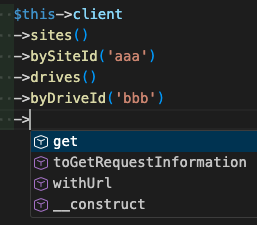
事實上 SDK 文件不是很友善,給的範例也是少之又少。 SDK 給的範例是可以串接參數
$this->client
        ->sites()
        ->bySiteId('aaa')
        ->drives()
        ->byDriveId('bbb')
        ....
但實際上串不下去….